


Web Scraper API
Fetch real-time data from 100+ websites,No development or maintenance required.
SCRAPING SOLUTIONS
Get accurate and in real-time results sourced from Google, Bing, and more.
With 120+ prebuilt and custom scrapers ready for any use case.
No blocks, no CAPTCHAs—unlock websites seamlessly at scale.
Execute scripts in stealth browsers with full rendering and automation
PROXY INFRASTRUCTURE
Over 100 million real residential IPs from genuine users across 190+ countries.
Reliable mobile data extraction, powered by real 4G/5G mobile IPs.
For time-sensitive tasks, utilize residential IPs with unlimited bandwidth.
Fast and cost-efficient IPs optimized for large-scale scraping.
SCRAPING SOLUTIONS
PROXY INFRASTRUCTURE
DATA FEEDS
Full details on all features, parameters, and integrations, with code samples in every major language.
LEARNING HUB
ALL LOCATIONS Proxy Locations
TOOLS
RESELLER
Get up to 50%
Contact sales:partner@thordata.com
Products $/GB
Fetch real-time data from 100+ websites,No development or maintenance required.
Get real-time results from search engines. Only pay for successful responses.
Execute scripts in stealth browsers with full rendering and automation.
Bid farewell to CAPTCHAs and anti-scraping, scrape public sites effortlessly.
Dataset Marketplace Pre-collected data from 100+ domains.
Over 100 million real residential IPs from genuine users across 190+ countries.
Reliable mobile data extraction, powered by real 4G/5G mobile IPs.
For time-sensitive tasks, utilize residential IPs with unlimited bandwidth.
Fast and cost-efficient IPs optimized for large-scale scraping.

Data for AI $/GB
Pricing $0/GB
Docs $/GB
Full details on all features, parameters, and integrations, with code samples in every major language.
Resource $/GB
EN $/GB
产品 $/GB
AI数据 $/GB
定价 $0/GB
产品文档 $/GB
资源 $/GB
简体中文 $/GB
Install the Thordata SERP plugin, authorize it with your own API token, drop an engine-specific search tool into a workflow, and watch a real Google result come back inside the Dify editor.
Dify gives you the whole shell of an LLM application: the editor, the workflow canvas, the agent runtime, the logs. What it cannot give you is today’s web. The moment a workflow needs a price, a release note, a news headline or a product comparison, a model that was trained months ago starts guessing.
The fix is a plugin that turns search into an ordinary node on the canvas. This tutorial uses the Thordata SERP plugin, which ships one Dify tool per search engine, validates parameters against the engine’s live schema before spending a request, and returns structured JSON that downstream nodes can read field by field.
By the end you will have:
q, gl, hl, num, location)Contents
Dify is an open-source platform for building LLM applications. Instead of writing a chat loop yourself, you get a visual workflow editor, an agent runtime, prompt and model management, and logs — either as Dify Cloud or self-hosted (Docker Compose, or from source with the API, web console and plugin daemon).
Three of its building blocks matter here:
A plugin is not a snippet you paste into a prompt: it is a package with a manifest, a credential definition, and one declaration per tool. Dify renders those declarations in the editor, which is why the tool node below shows real dropdowns instead of a free-text parameter box.
Everything a model knows stopped at its training cutoff. Prices, releases, outages, regulations, this year’s product comparisons — a workflow that answers questions about them without reaching the network produces confident fiction. Three properties of LLMs make this a real product problem, not a theoretical one:
Calling a search results page looks like ten lines of code in an HTTP Request node. Keeping it working is the actual cost: bot detection and CAPTCHAs, proxy rotation, per-country and per-language localisation, HTML that changes without notice, and a different parser per engine. Parsing is the part people underestimate — news boxes, answer boxes, local packs, shopping carousels and related questions all live in different places, and every engine arranges them differently.
The Thordata SERP API takes that half: one HTTPS request returns parsed JSON for the target engine, proxies and geo-targeting included.
Even a good API is not enough for a canvas node. The node needs to know which parameters exist, so the editor can render the right fields and the runtime can reject nonsense before a request is spent. Engines differ: Google Web takes a query plus locale and a location, Flight Search takes airport identifiers, Lens takes an image URL. Guessing a parameter name is a 400 at best and a silently wrong search at worst.
This plugin solves that with the same Schema API the n8n integration uses. When the plugin is installed, the schema is turned into concrete Dify tool declarations — one tool per engine — so the editor shows exactly the fields that engine accepts. At runtime the plugin still fetches the current schema (with cache and snapshot fallback) and validates the values before the request goes out.
Package thordata_serp 0.1.0, author thordata, category tool. It declares outbound access to exactly two domains — api.thordata.com for the engine schema and scraperapi.thordata.com for searches — and runs as a local Python plugin on the daemon’s Python 3.12 runtime.
Installing it adds 34 tools, one per engine in the current schema:
| Group | Count | Examples |
|---|---|---|
| 26 | google, google_ai_mode, google_web, google_shopping, google_news, google_maps, google_scholar, google_trends, google_flights, google_hotels, google_lens… | |
| Bing | 6 | bing, bing_images, bing_news, bing_maps, bing_shopping, bing_videos |
| Other | 2 | yandex, duckduckgo |
There is no generic “pick an engine” tool. Selecting an engine is selecting a tool, which is what lets Dify show that engine’s own fields — google_web exposes 23 parameters, google_news only 4, bing_news uses cc and mkt instead of gl and hl.
Every engine tool returns the same envelope, so one error branch covers all of them:
{"ok": true,  "status": 200, "engine": "google_web", "data": { ... }}

{"ok": false, "error": {"type": "SerpApiError", "status_code": 401, "message": "..."}}
Three behaviours are worth knowing before you wire anything up:
google and the query Dify credential validation. If your token is wrong, you get a readable error instead of a broken workflow later. (The plugin asks for a single result, but num is not a visible field of that engine, so the engine’s default count comes back — the call still only costs one request.)json=1 and compact mode internally, and compaction strips search_metadata, search_parameters, serpapi_pagination and request_metadata at every nesting level. Those fields are useful when debugging a request and pure waste inside a model’s context.Local packages are unsigned. A .difypkg you build yourself has no Marketplace signature, and the plugin daemon rejects it by default with “plugin verification has been enabled, and the plugin you want to install has a bad signature”. Either install the signed release from the Dify Marketplace, or — on a self-hosted instance you control — set FORCE_VERIFYING_SIGNATURE=false for the plugin daemon and restart it. The screenshots below use the local-package route.
Everything below happens in the Dify console. After signing in you land in Studio, which lists your apps.
The console sign-in page of the reference instance.
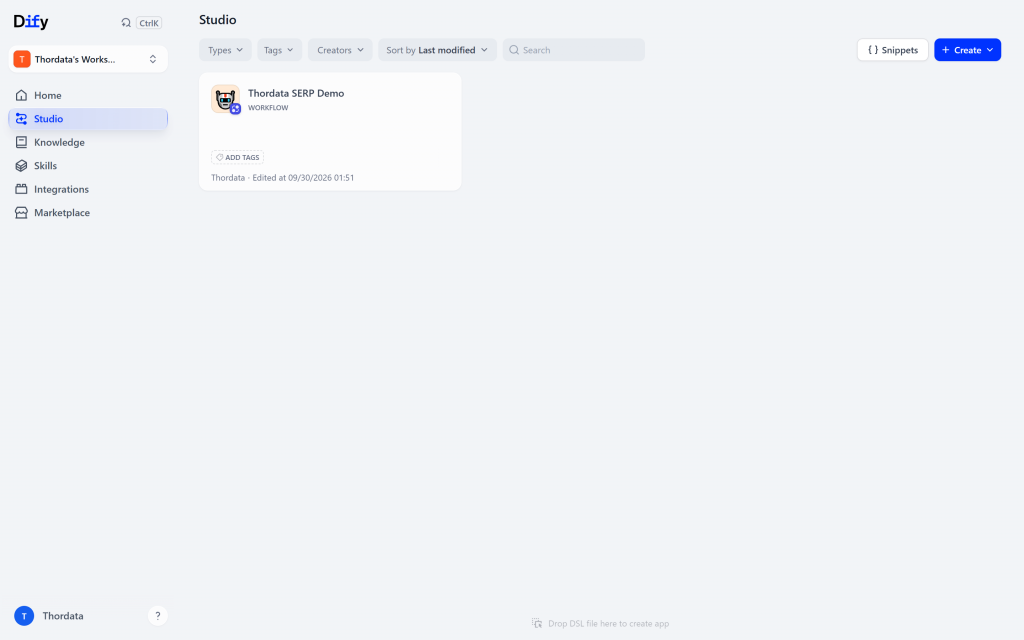
Studio, with the workflow app this tutorial builds.
In the Thordata dashboard open SERP API → API Token (the API Playground exposes the same token) and copy it. Create one if you have not yet — the free trial credit lives on the same page. Keep it out of prompts, workflow variables and screenshots; the plugin only ever needs it in the provider credential.
Open Integrations in the sidebar, press Install, and choose the signed Thordata SERP plugin from the Marketplace. If you operate a self-hosted Dify instance and your organization provides a release package, the same screen also supports GitHub releases or a local package file. The screenshots below show the local-package path, but the workflow configuration is the same after installation.
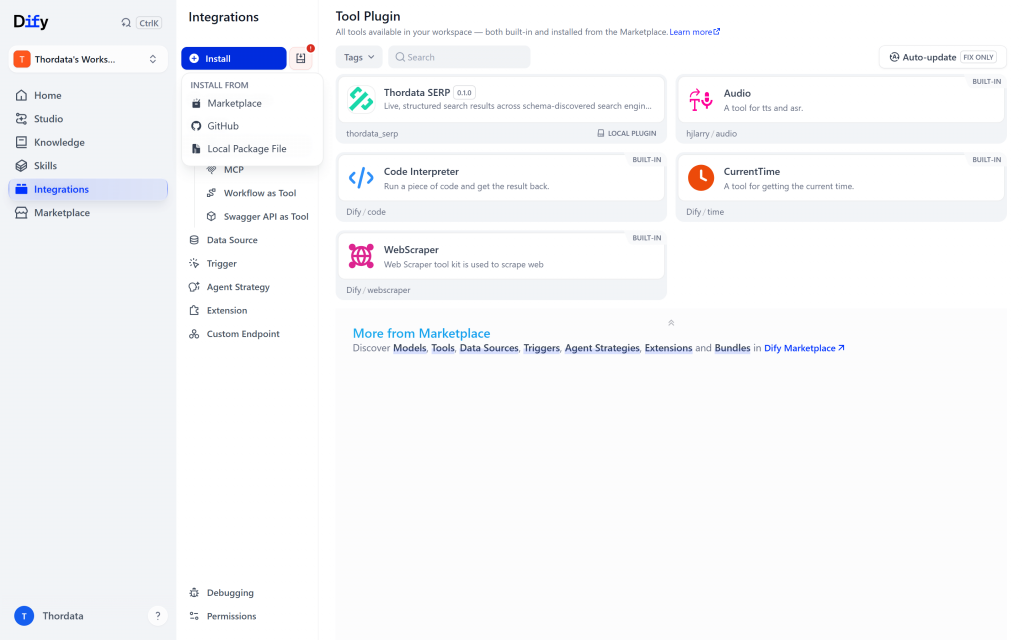
Three ways in. A locally built package goes through Local Package File — and needs signature verification off (see the callout above).
Dify uploads the package to the plugin daemon, decodes it, and starts the install task. The daemon unpacks the plugin, creates a Python 3.12 virtual environment for it, installs its runtime dependencies (dify-plugin and requests), and launches the plugin process. When it finishes, the plugin appears under Integrations → Tools → Tool Plugin, tagged LOCAL PLUGIN or MARKETPLACE depending on where it came from.
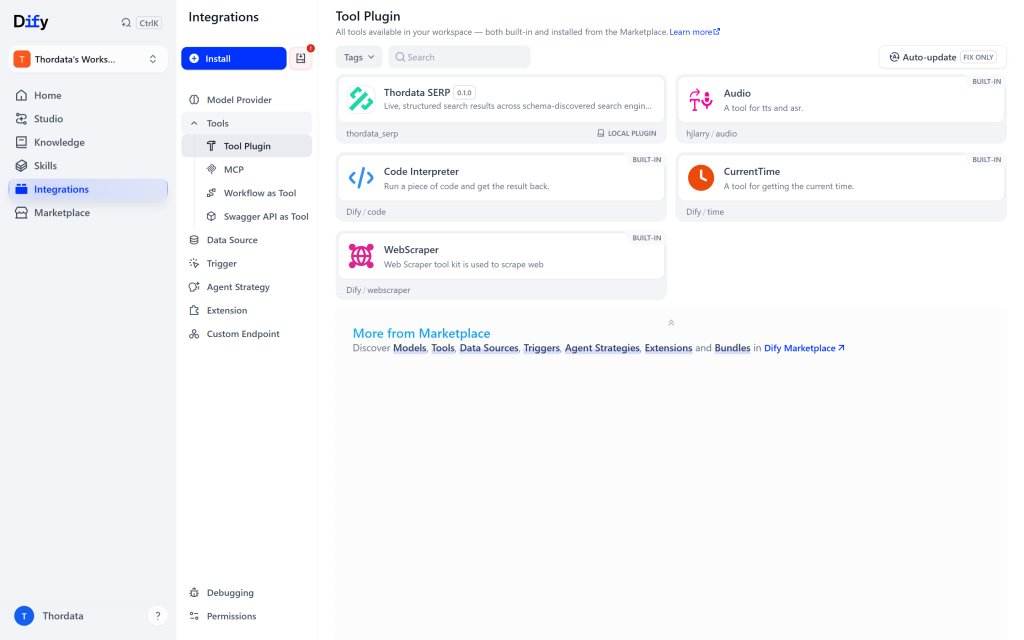
Installed and listed next to the built-in tools. Nothing is wired up yet — a plugin can be installed and still unused.
Click the plugin card to open its drawer, then expand Authorization and add the API token you copied in step 2. Dify stores it as a workspace credential and immediately runs the provider’s credential validation — a real search request. On success the drawer shows one authorization bound to the API token; the token itself is never rendered back to you.
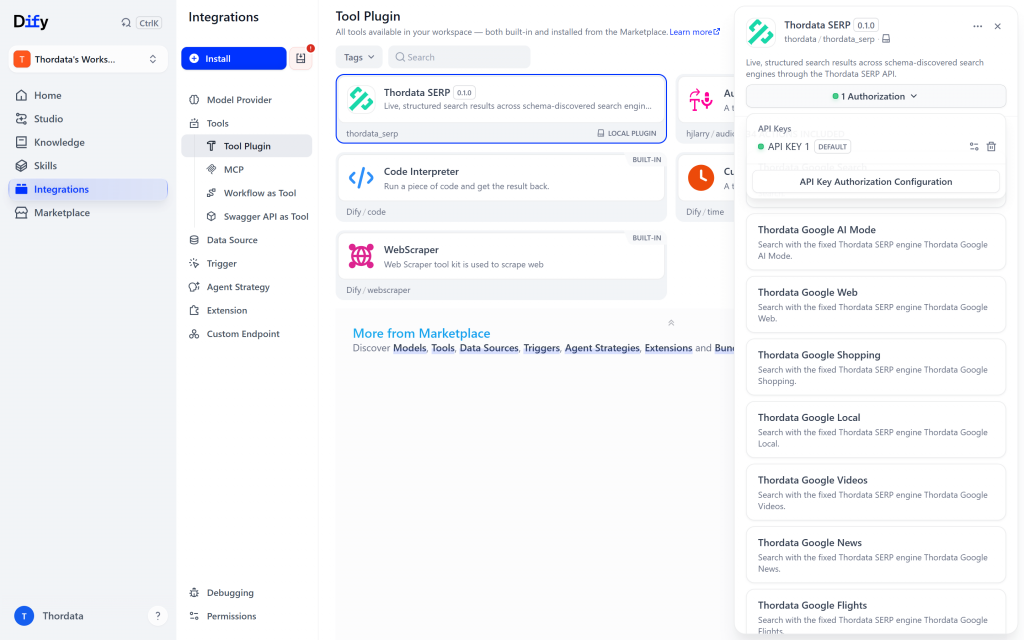
One authorization, saved as the workspace default. That is what every node in every workflow will use.
Validation already used one request. If you are watching a quota dashboard, expect exactly one successful SERP call per authorization. A failed validation costs nothing and returns a normalised error such as a 401 for a wrong token.
The same drawer is where you see what the plugin actually brings: 34 actions included, each one an engine. Scrolling that list is the fastest way to understand the plugin — Thordata Google Search, … AI Mode, … Web, … Shopping, … Local, … News, … Maps, … Scholar, and so on down to the Bing and DuckDuckGo entries.
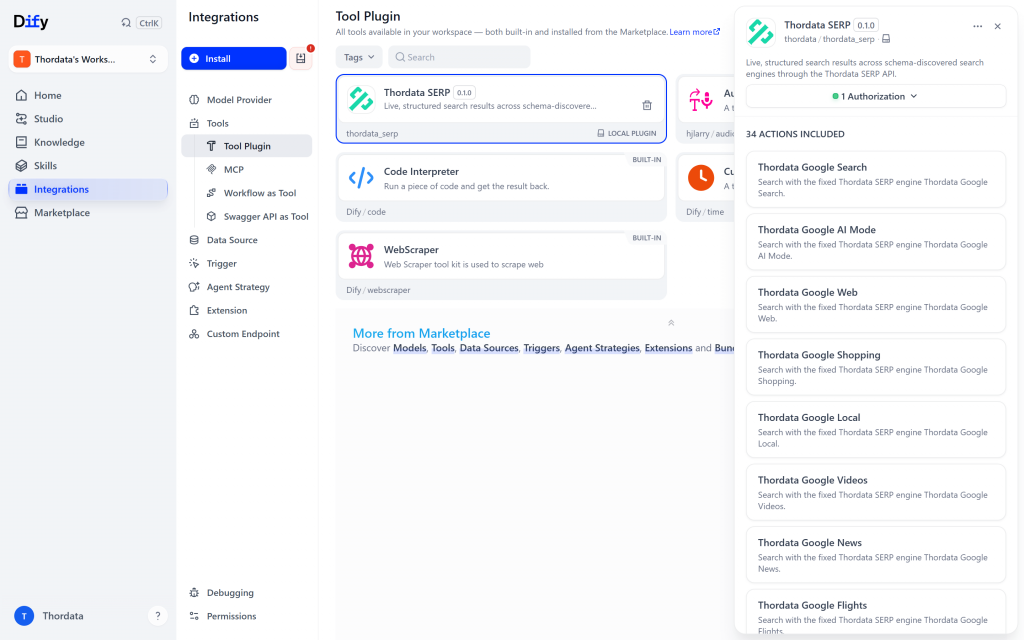
34 engine tools in one plugin. Selecting an engine is selecting a tool — that is how Dify ends up showing per-engine fields.
Go back to Studio, choose Create from Blank, pick Workflow, give it a name, and create it. The editor opens on an empty canvas and asks which trigger the workflow starts with: pick User Input.
Now add the search step. Click the + handle on the right edge of the start node (or Select next step in the side panel) to open the node palette, switch to the Tools tab and search for Thordata. The plugin expands into its engine list.
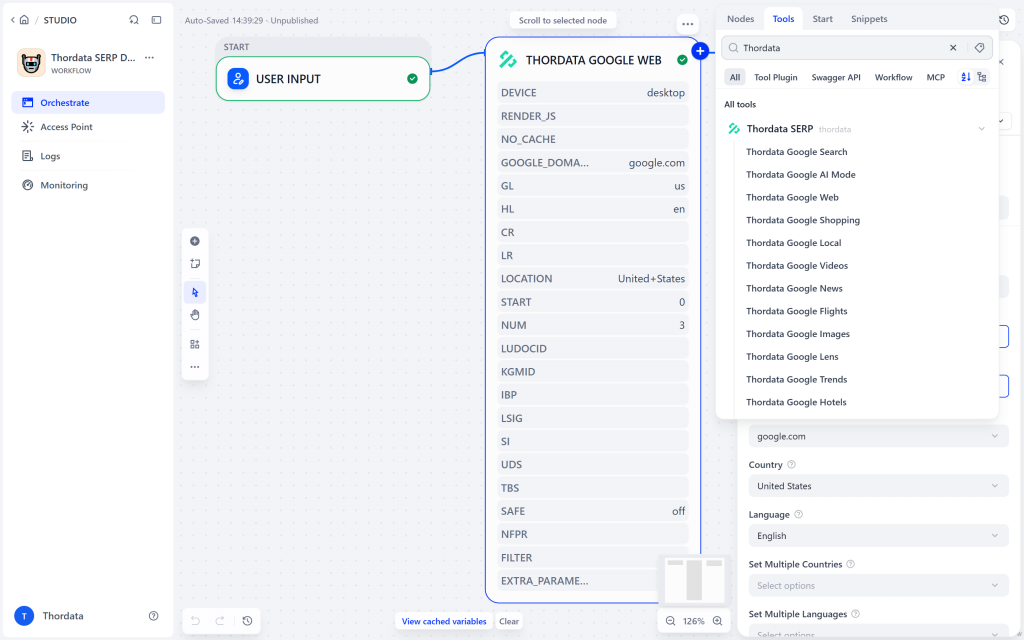
The Tools palette. Each entry becomes a node with that engine’s own parameters — pick Thordata Google Web for a classic web search.
Click Thordata Google Web. The node lands on the canvas and its settings panel opens on the right.
The panel has two parts. Input variables holds the fields an agent or an upstream node may fill — here, the required search query. Settings holds the rest of the engine’s parameters, rendered from the installed declarations: dropdowns for Device, Domain, Country and Language, True/False toggles for JS render and Disable Caching, multi-selects for country and language filters, a Location list, numeric inputs for the result offset and count, and extra_parameters_json for anything the form does not cover.
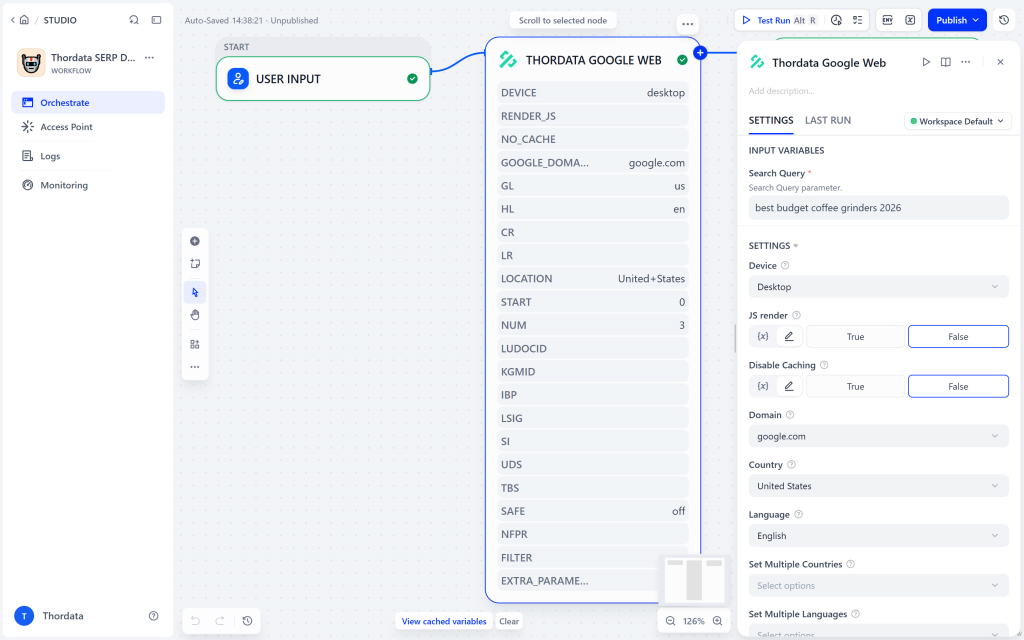
The node’s settings: one required query field, then engine-specific controls. Everything here is validated against the engine schema before the request is sent.
For this walkthrough the query is best budget coffee grinders 2026, with Country left on United States, Language on English and the result count reduced from the default 10 to 3. Those three parameters are the ones worth setting explicitly in almost every search node:
num — how many results come back. Ten raw results is a lot of JSON; for a summarising node three is usually plenty.gl (Country) — which country’s Google you query. Different countries return different result sets, and nothing can infer which one you meant.hl (Language) — the interface language of the results.Location is the fourth parameter with a subtlety: engines that expose both location and uule get automatic UULE generation. You pick a place; the plugin derives the encoded UULE value from it and the option label shows the derived string. There is no separate UULE field to get wrong.
Finally connect the node to an output: add an End node and map the tool’s result variable into it. The finished graph is three nodes long.
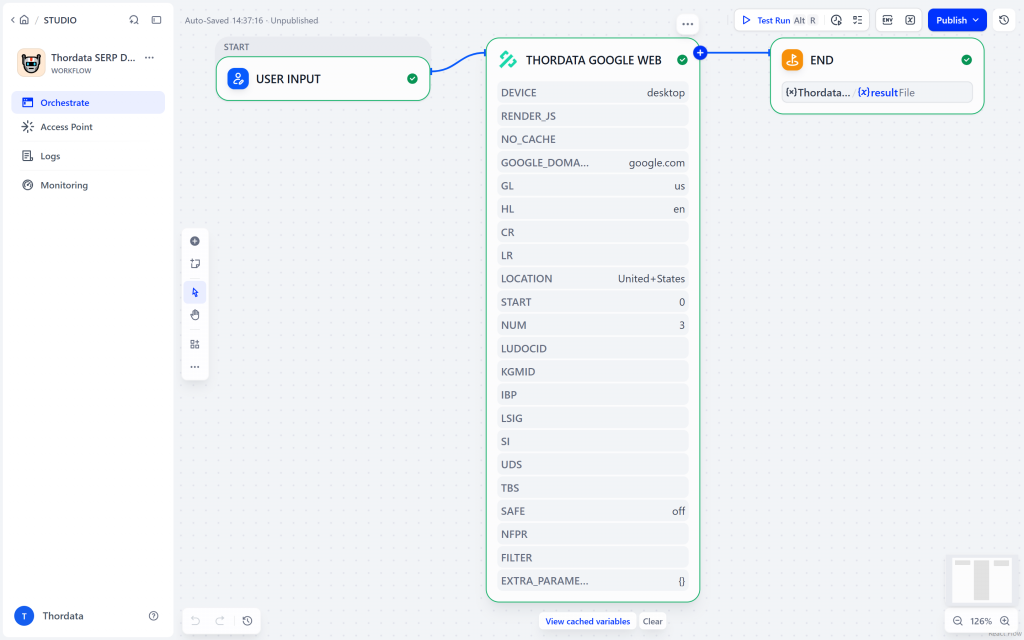
Start → Thordata Google Web → End. The tool node reads its own settings back: gl=us, hl=en, location=United+States, num=3.
Press Test Run in the top right. The workflow executes node by node — the tool node calls the plugin, the plugin calls the Thordata API, and the run panel fills in. A real run of this graph finishes in a couple of seconds and costs no LLM tokens, because a tool node is not a model call.
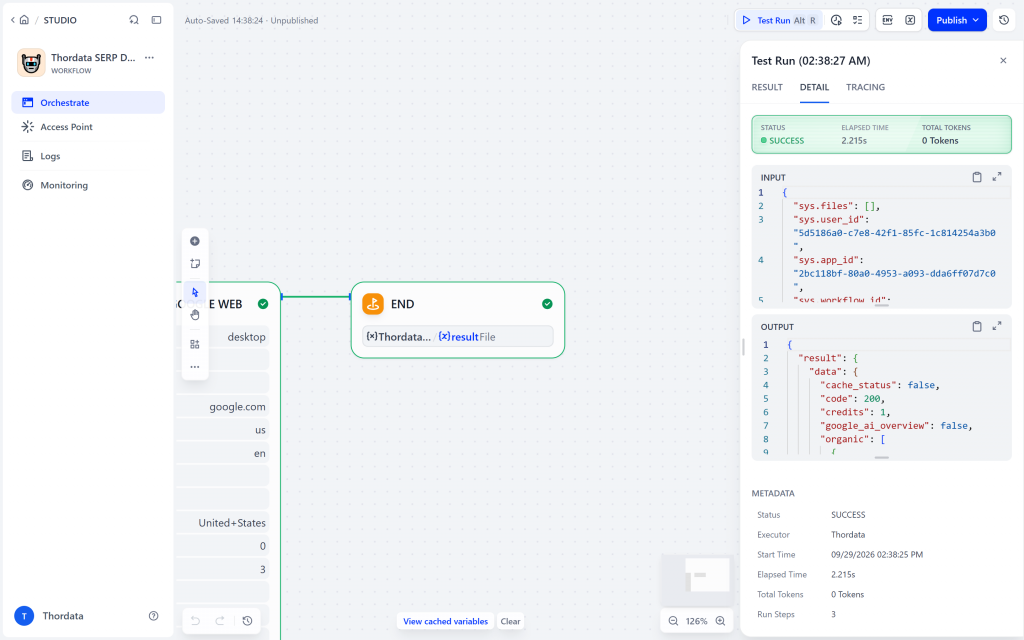
A real Test Run: SUCCESS in 2.2 s, zero LLM tokens, and the tool’s JSON in the OUTPUT block.
What comes back is the envelope described earlier. In compact mode the output is small and immediately readable:
{
  "result": {
    "ok": true,
    "status": 200,
    "engine": "google_web",
    "data": {
      "cache_status": false,
      "code": 200,
      "credits": 1,
      "google_ai_overview": false,
      "organic": [
        {
          "position": 1,
          "title": "Best Budget Coffee Grinders for 2026",
          "link": "https://coffeegeek.com/guides/feature-guides/best-budget-coffee-grinders-for-2026/",
          "description": "The Kingrinder P2 at $45, the K2 at $75, the Mavo Phantox Pro at $130…"
        }
      ]
    }
  }
}
Two things this excerpt hides. organic actually holds all three results requested with num; only the first is printed above. And the data object grows with the page: the same call also returns people_also_ask, related and spider_parameter when the engine provides them, so treat the keys here as the minimum rather than the complete shape.
Downstream nodes reach into that structure with Dify’s variable selector: result.data.organic[0].link is a URL you can put in an answer, result.data.organic is an array you can loop over with an Iteration node. Because the shape differs per engine — Maps returns places, Shopping returns shopping, Bing returns organic_results — read the keys from the run panel once instead of assuming.
A tool node is not an answer. The screenshot above shows raw search results; turning them into prose is the job of an LLM node or an Agent app that has the same plugin tools attached. Keep that separation: it makes the search step cheap to test, cache and debug on its own.
Engines are just other tools in the same plugin, so the workflow does not change: drop in google_news for headlines, google_shopping for prices, google_maps for places, google_scholar for papers, bing or duckduckgo when you want a second opinion. Field names differ, so wire the End node to the right key — the run panel tells you which one that is.
Every engine tool ends with extra_parameters_json, an advanced JSON object. It can only set parameters the engine declares and keeps visible — which in practice means the two that have no control of their own on the form: uule, when you want to hand over the encoded location instead of letting it be derived from location, and json, to override the response format. engine and isjson are ignored, so the fixed engine and the structured response mode stay fixed. Anything the engine does not declare — including schema-hidden names such as ai_overview — is dropped silently: no error, no effect. That is the one sharp edge here, so if an advanced parameter seems to do nothing, check its spelling against the node’s own field list before assuming the API ignored you.
Because every engine tool shares the envelope, one branch covers all of them: a node that reads result.ok and routes false down an error path, where result.error.status_code and result.error.message tell you whether it was an authentication problem, a quota problem or an upstream error. A failed tool call does not print your token — expected errors are bounded and the configured token is redacted before the message crosses the tool boundary.
api.thordata.com and scraperapi.thordata.com, and does not follow redirects. If your instance runs behind an egress proxy or a firewall allow-list, those two hosts are the complete list to open.num is cheaper than a bigger context window.If Test Run hangs at “Running” with no node events, the workflow never reached a worker. On self-hosted Dify the console’s Test Run path enqueues the execution and a Celery worker consumes it; start a worker (for example celery -A app.celery worker -P solo -Q workflow_based_app_execution,plugin,workflow_storage,conversation) and the same run completes in seconds. This is a deployment detail, not a plugin problem — the plugin daemon log stays silent until a worker actually invokes the tool.
Pairing Dify with Thordata’s SERP API gives you live search built on two things you control: the workflow runs on your own Dify instance, and every result is fetched at run time instead of being written into a prompt. The three-node shape is small enough to read at a glance — Start, one engine tool, End — and every part of it is swappable: change the engine, change the query, tighten gl, hl or num, or hand the JSON to an LLM node, without touching the rest. A Test Run finishes in a couple of seconds and spends no LLM tokens at all.
The same shape reaches well past web search. The plugin installs the platform’s whole engine catalogue as separate tools — 34 of them, from news, shopping, maps and scholarly papers to trends, hotels and flights, plus Bing and DuckDuckGo — so moving from google_web to google_news means swapping one node rather than rewriting parameters. And because each engine is an ordinary Dify tool, the same node can sit inside a Chatflow or Agent app when you want the model to choose the queries itself.
To point it at your own account, create an API token in the Thordata dashboard, keep doc.thordata.com open for the parameter reference — it documents what each of the 34 engines accepts — and install the plugin from the Dify Marketplace or from a release available to your Dify instance. The workflow shown in this tutorial is intentionally small: User Input → Thordata Google Web → End. Recreate those three nodes in a blank workflow, then use the screenshots and the field descriptions above to configure the same result.
 Looking for
Top-Tier Residential Proxies?您在寻找顶级高质量的住宅代理吗?
Looking for
Top-Tier Residential Proxies?您在寻找顶级高质量的住宅代理吗?
一張網紅報價單,值多少錢?把直覺換成算式給老闆看
網紅行銷最大的成本不是報價,是「憑感覺成交」——粉絲數可以買 ...
Xyla Huxley
2026-10-15
Legal Said No. Data Said Yes. The 90-Minute Meeting That Fixed Both.
The slowest part of buying tra ...
Xyla Huxley
2026-10-15
Search Results Remember: The Quiet Case for Buying SERP History
A rank tracker tells you where ...
Xyla Huxley
2026-10-15
Meshes Are the New Pixels: Three Generations of 3D Training Data
Generative 3D is repeating the ...
Xyla Huxley
2026-10-15

Read Any Language, Even in Bad Handwriting: An OCR Data Quotation, Teardown-Style
Every OCR project's roadmap di ...
Xyla Huxley
2026-10-15

Your Customers Already Wrote the Spec Sheet: Mining Amazon Reviews at Corpus Scale
Every product question a consu ...
Xyla Huxley
2026-10-15

開店之前,先買一張地圖:展店選址的資料採購清單
連鎖品牌展店選址的成敗,一半在租金談判之前就決定了——商圈密 ...
Xyla Huxley
2026-10-13

The Pricing Team’s First Data Vendor: A One-Page Due Diligence
Pricing teams are expert buyers of software and naive b […]
Unknown
2026-10-13
Ten Weeks Inside a Trend Desk: Notes From the Team That Stopped Scraping TikTok
A consumer-insights team runni ...
Xyla Huxley
2026-10-13